
Automating SEO for My Hugo Blog with Codex and MCP
Table of Contents
Here is a continuation of my experiments with AI and how it can improve the searchability and discoverability of my personal website. I have already written a couple of articles on the topic:
- How to build and host a static website in one weekend?
- Automating Travel Blogging: Voice, AI, and Hugo in One Hour
With this article, I would like to dive into the SEO optimization I recently started applying. In my previous article about blogging automation, I talked about using ChatGPT to automate Hugo and Markdown formatting. But I recently discovered that OpenAI is going to retire personal GPTs soon, and that’s obviously a call to migrate my existing GPT to a separate plugin.
That’s where the whole journey started: I copied my prompt from the web interface and used Codex to convert it into a plugin with a single skill. Then I realized there were many other things I could automate.
Auto translation

First, I realized that I shouldn’t have to translate articles manually from English to Russian when I can simply use LLMs. I’m not translating philosophical texts, but rather travel notes, and it’s quite difficult to make a mistake there. So, I quickly came up with a skill that uses my existing articles to learn my writing style and translate the remaining articles from English to Russian. Finally, there is parity between the Russian and English articles on my blog!
The next question was: why should I limit myself to only two languages? Why not pick three or even five? But which ones? Should I pick the top five languages around the world? Or should I check a country’s or region’s tourist board, get statistics on its tourist population, and use that information to translate an article into relevant languages?
That sounds complicated in the pre-AI era, but now I can simply write a skill! That’s what I did. For example, an interesting outcome is that my most popular series of articles is about a Jeju itinerary, and the majority of tourists in Jeju are Japanese, Taiwanese, and Chinese, not Spanish or French. Obviously, I added a note about AI translation and a link to the original article.
Obsidian
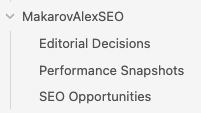
Here is an important caveat. Analyzing tourist boards, identifying tourist populations, and picking relevant languages is a complicated, intensive task. It would be hard to run it every time, so storing the data somewhere would be very beneficial. A database? A cloud bucket? But I have something better: my personal knowledge base (knowledge graph), which I carefully maintain in Obsidian. So, I think you already guessed it—another skill!
Just a few words of praise for Obsidian (check out their website domain!). For only four bucks per month, you get sync across devices, version history, 1 GB of storage, and brilliant support for a knowledge graph constructed from your Markdown notes! Eventually, it became my natural choice for persistent storage. I also strongly advise you to adopt this brilliant tool.
Website performance and MCPs
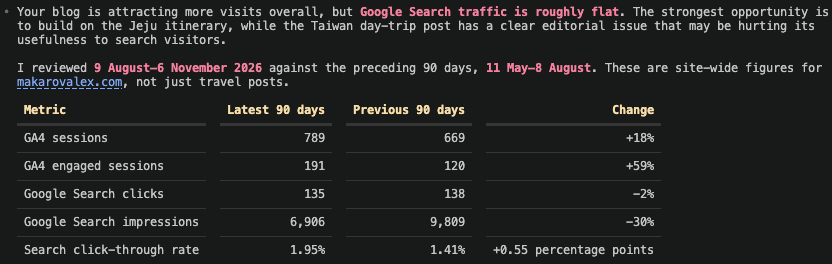
The second set of decisions was about tools to evaluate website performance. I picked:
- Ahrefs. I love the simplicity of the website for general SEO purposes, such as backlink analysis, keyword research, etc.
- Google Search Console and Google Analytics. The alpha and omega of tracking user behavior and website conversions.
- Microsoft Clarity. It lets you quickly evaluate how end users interact with your website for free (kind of!)!
The above data sources are invaluable for anybody trying to optimize their SEO and, obviously, should be used when making key decisions. But how can I make my AI agents aware of this information? You know the answer—MCPs! It’s quite easy to set up the relevant MCP servers.
Setup Google Analytics and Search Console
To connect Google Analytics and Search Console to Codex, I used a Google Cloud project and authorized my Google account. Here’s the setup I followed.
1. Create a Google Cloud project
Open the Google Cloud Console and create a project, or select an existing one. Note its project ID: you’ll need it when registering the MCP servers.
The Google account you authorize must have access to the Google Analytics property and Search Console site you want to analyze.
2. Enable the APIs
In the selected project, open APIs & Services → Library and enable:
- Google Analytics Data API
- Google Analytics Admin API
- Google Search Console API
3. Configure the OAuth consent screen
Open Google Auth Platform in the Cloud Console and configure the consent screen. For a personal Google account, select an External audience and leave the app in Testing.
Under Audience → Test users, add the Google account you’ll use to authorize access. I missed this step initially and received an Error 403: access_denied.
4. Create a desktop OAuth client
Under Google Auth Platform → Clients, create a client with the Desktop app application type. Download its JSON file and keep it in a private location outside your website repository.
5. Install the command-line tools
On macOS with Homebrew, install the Google Cloud CLI and uv:
brew install --cask gcloud-cli
brew install uv
Open a new terminal if the commands aren’t immediately available.
6. Authorize your account
Run the following command, replacing PATH_TO_OAUTH_CLIENT_JSON with the path to your downloaded client file:
gcloud auth application-default login --client-id-file="PATH_TO_OAUTH_CLIENT_JSON" --scopes="https://www.googleapis.com/auth/analytics.readonly,https://www.googleapis.com/auth/webmasters.readonly,https://www.googleapis.com/auth/cloud-platform"
Sign in with the Google account you added as a test user and approve the requested access. Keep the command’s scopes on one line: I accidentally inserted a line break in the Search Console scope and received an invalid_scope error.
The first two scopes provide read-only access to Analytics and Search Console. The cloud-platform scope is broader, so review the consent screen before approving it. The command also replaces any existing local Application Default Credentials created with the same gcloud command.
7. Register the MCP servers with Codex
Replace YOUR_PROJECT_ID with your Google Cloud project ID:
codex mcp add google-analytics \
  --env GOOGLE_CLOUD_PROJECT=YOUR_PROJECT_ID \
  -- uvx --from analytics-mcp google-analytics-mcp
codex mcp add google-search-console \
  --env GOOGLE_CLOUD_PROJECT=YOUR_PROJECT_ID \
  -- uvx --from gsc-readonly-mcp gsc-mcp
The Analytics server is published by Google. The Search Console server is community-maintained and provides read-only access.
8. Check the servers
List the registered servers:
codex mcp list
Then start a new Codex session and ask it to list the Analytics properties and Search Console sites available to your account. If your OAuth app remains in testing mode, you may need to authorize it again later.
And you’re good to go!
Ahrefs is extremely easy to configure too!
Once I managed to configure the MCPs and form structured queries to the listed tools, I had to automate the process. Another skill! To be honest, I created a few: a skill to analyze existing Google Analytics and search results, a skill for keyword planning, and a skill to review and improve existing content.
What’s next?
My current target is to increase my visitor base from about 150 a month to 500, so let’s check in next year!
I’m planning to try a set of agents to spread the word about my website—the cost of trying is so low now! I’m also planning continuous improvement and fixes for problems highlighted by Google Search Console, Google Analytics, or Ahrefs searches. I’m thinking about exploring a ticketing system for agents or even building one if none exists.
Lastly, I’m going to run various performance and analysis frameworks to evaluate how well my website is doing and what I can improve to make it more accessible to end users.
Stay tuned!